
When you visit a website you like, or a competitor’s, and you wonder what it’s built with. It could be WordPress, Shopify, Magento or something custom. The good news is you can check the CMS of a website in a couple of minutes, without any technical background.
A CMS (content management system) is the software that lets people edit a website’s pages, posts and products without necessarily write code. WordPress, Shopify, Wix, Joomla and Drupal are all examples.
There are a few common reasons on why you might want to check the CMS of a website:
- You’re researching competitors or sites you admire.
- You’re planning a redesign and want to see what others use.
- You’re choosing a platform for your own site.
- You’re about to hire a developer and want to know what a site is already running on.
Method 1: Use a free online CMS detector
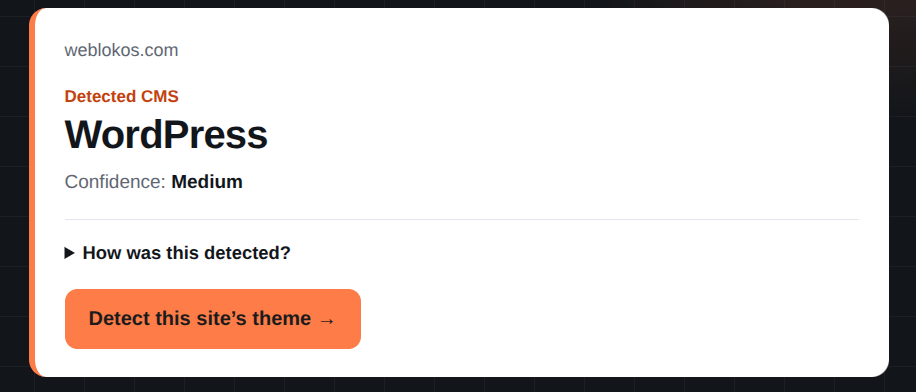
This is the quickest route. You paste in a web address and the tool tells you what it finds. Our CMS Detector is a free option that’s simple to use: enter the URL, click the detect button, and you’ll usually see the CMS, and sometimes the theme or other technologies too.
Method 2: Install a browser extension
If you do this often, a browser extension saves you pasting URLs. Wappalyzer and BuiltWith both offer one for Chrome and Firefox. Once installed, you visit any site, click the icon, and a small panel lists the technologies it detected.
Method 3: Look for clues on the site
Sometimes the answer is sitting in plain view. Scroll to the footer and look for text like “Powered by WordPress” or “Built with Shopify.” Online stores often give it away in the cart or checkout page, too.
This method isn’t reliable on its own, since many sites remove those credits. But it’s the fastest check there is.
Method 4: Look at the page source
The page source is the raw code behind a page, which your browser reads to display the site. You don’t need to understand it. You just need to search it. On most computers, right-click an empty part of the page and choose View Page Source (or press Ctrl+U on Windows, Cmd+Option+U on Mac). Then use Ctrl+F or Cmd+F to search for these words:
- wp-content: usually WordPress.
- cdn.shopify.com: usually means Shopify.
- generator: some sites include a line naming the software they run on.
- /sites/default/files/: often points to Drupal.
These aren’t guarantees. A site can hide or rename these paths, but finding one is a strong hint.
Method 5: Try a few well-known addresses
Many CMS platforms use predictable addresses for their login pages. Add one of these to the end of the site’s web address and see what happens:
- /wp-login.php or /wp-admin often shows a WordPress login screen.
- /administrator is commonly used by Joomla.
- /user/login is commonly used by Drupal.
Visiting a login page is harmless, as long as you don’t try to log in. Just keep in mind that careful site owners sometimes change or hide these addresses, so a “page not found” doesn’t prove much either way.
What if nothing gives you a clear answer?
Sometimes it happens. The site might be custom-built, or the owner may have hide the website’s details. In that case, comparing two or three methods is usually the best you can do, and treating the answer as “probably” instead of “definitely” is fair.
If you’re curious how a site was built, or you’d like to know whether a similar setup would work for your project, that’s something we’re happy to talk through. You can reach us through “Get in touch” button.