
When your WooCommerce checkout is not working, it feels like an emergency, and it kind of is. Checkout is the one page where a visitor turns into a paying customer. The good news is that checkout problems usually come from a fairly short list of causes, and you can check most of them without writing any code.
Two things before you start. First, take a backup. Second, if you can, try the fixes on a staging site without affecting customers. Or you can make changes during your less traffic hours, because some of these tests briefly affect the live store.
After each change, test in a private/incognito browser window. That way you’re seeing what a real visitor sees.
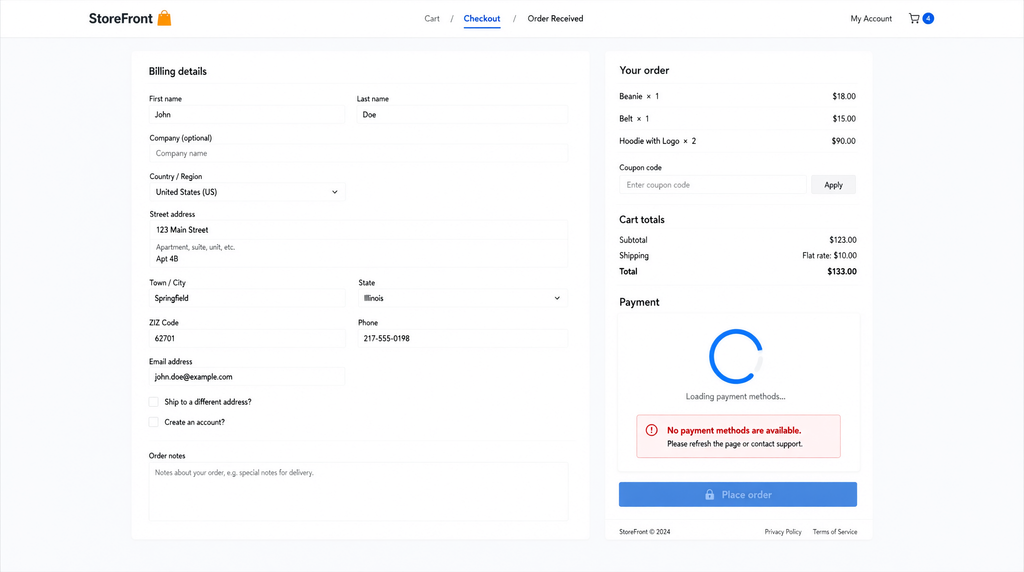
“Checkout not working” can mean a few different things: the page never finishes loading, no payment methods appear, the Place Order button does nothing, or the payment fails after the customer clicks it. Write down which one you’re seeing. It usually points you toward the right cause below.
Caching is showing visitors an old copy of the page
Caching means your site saves a ready-made copy of a page so it loads faster. Checkout is personal to each visitor, so it shouldn’t be served from a saved copy.
What to do: In your caching plugin, hosting cache settings, and any CDN or Cloudflare rules, exclude the Cart, Checkout and My Account pages from caching. Then clear all caches.
Two plugins are conflicting with each other.
Marketing tools, popups, coupon plugins and shipping add-ons all can be involved in checkout, each executing its code.
What to do: Temporarily deactivate everything except WooCommerce and your payment plugin, then test. If checkout works, turn plugins back on one at a time until it breaks again. The last one you activated is your culprit.
Your theme is overriding WooCommerce’s checkout files
Some themes carry their own copies of WooCommerce’s page templates. If WooCommerce updates but your theme’s old copy doesn’t, the two can interfere.
What to do: Temporarily switch to one of WordPress’s default themes and test. If checkout works, contact your theme’s developer or ask us to update the overrides.
The checkout type doesn’t match your plugins
Since late 2023, new WooCommerce stores get a block-based checkout by default, which is a newer and more flexible version of the page. Older payment or checkout add-ons are sometimes not built for it, and they may quietly disappear instead of showing an error.
What to do: Edit your Checkout page. If you see a “Checkout” block, try replacing it with a Shortcode block containing [woocommerce_checkout] (the classic version). If that fixes things, one of your plugins probably isn’t compatible with the block version yet. Updating or replacing it is usually the long-term fix.
Your payment gateway settings are off
A payment gateway is the service that processes cards, such as Stripe or PayPal. It connects to your store using API keys. Keys that are wrong, expired, or still set to “test mode” on a live store are a regular cause of failed payments, and so is moving your site to a new domain without reconnecting them.
What to do: Go to WooCommerce → Settings → Payments, open your gateway, and confirm it’s enabled, in live mode, and using the right keys. Then check WooCommerce → Status → Logs for error messages from the gateway, which often say exactly what’s wrong.
Your SSL certificate has a problem
Payment forms usually refuse to load if SSL certificate is expired or only partly working (for example, if some images or scripts still load over plain “http”).
What to do: Visit your checkout page and look at the padlock in the browser. If there’s a warning, ask your host to renew or fix the certificate.
A speed plugin is tweaking scripts the checkout needs
Checkout relies heavily on JavaScript, speed plugins that combine, minify or delay scripts can accidentally break it.
What to do: In your optimization plugin, exclude the checkout page from JavaScript optimizations, or switch those options off one at a time and retest.
A security plugin or firewall is blocking customers
A firewall is a filter that blocks suspicious traffic. Occasionally it mistakes normal checkout activity, such as the background requests the checkout makes, for a malicious traffic.
What to do: Check the logs in your security plugin or Cloudflare dashboard for blocked requests around the time of a test order. If you find one, add an exception for it. If you’re not sure what you’re looking for or simply don’t have time for it, this is a good chance to hand to someone experienced.
Outdated plugin or low server limits
An outdated WooCommerce version, a gateway plugin that hasn’t been updated, or an unsupported PHP version can all cause trouble. Low server memory can also cause 500 or 504 errors at checkout.
What to do: After a backup, update WooCommerce, your theme and your payment plugins. If you’re seeing server errors, ask your host about the PHP memory limit. Somewhere around 256 MB is a recommended for WooCommerce stores, but it depends on your plugins and traffic.
Something is missing in your store setup
Sometimes nothing is broken, it’s just not fully set up. No shipping zones for the customer’s country, a country you don’t allow in your general settings, a Checkout page not assigned in WooCommerce → Settings → Advanced, or a store currency your gateway doesn’t support can all stop an order from going through.
What to do: Test with a few different addresses and check each of those settings in turn.
If you’ve worked through the list and checkout still isn’t behaving, it’s worth getting someone to look at it. That’s exactly what our WooCommerce developer service is for. We’ll find out what’s actually going on and tell you what it’ll take to fix.